

How to switch from Sage to Xero accounting: 2026 guide
Executive Summary
- Switching from Sage to Xero involves a carefully planned data migration process that ensures accurate transfer of accounts, contacts, and balances. South African SMEs select migration dates at the start of financial years or VAT quarters to simplify reporting and compliance. Proper preparation, including data cleaning and validation, reduces reconciliation issues and guarantees a smooth transition.
Switching from Sage to Xero accounting is a structured data migration process that moves your chart of accounts, contacts, balances, and transaction history into a cloud-based platform. South African SMEs make this move to gain real-time bank feeds, better VAT reporting, and tighter SARS compliance tools. Done correctly, the transition takes 3–10 business days for technical execution. Done poorly, it creates reconciliation headaches that last months. This guide covers the exact timing, preparation steps, migration process using tools like Movemybooks, and post-migration validation you need to get it right the first time.
When is the right time to migrate from Sage to Xero?
The single most important decision in this process is not which tool you use. It is when you move. Choosing the wrong migration date increases VAT and tax reporting complexity far more than any technical error will.
The cleanest migration dates are the first day of a new financial year or the start of a new VAT quarter. These natural cut-off points give you a clear opening balance in Xero and a clean closing balance in Sage. Mid-month or mid-quarter switches force you to split transactions across two systems, which creates reporting gaps and makes SARS submissions harder to reconcile.
Plan for a 6–8 week preparation window before your target go-live date. This gives you time to clean your Sage data, map your chart of accounts, and test Xero before you rely on it for live transactions. Rushing this window is the most common reason migrations fail.
Key timing rules to follow:
- Start at the beginning of a financial year or VAT quarter
- Avoid switching mid-month or mid-payroll cycle
- Keep Sage active and accessible for at least 6 years after migration, as record retention requirements apply regardless of software changes
- Build a 6–8 week runway from decision to go-live
Pro Tip: Set your Xero conversion date to the first day of your new financial year. This keeps your comparative reporting clean and avoids split-period VAT submissions to SARS.
What to prepare before you migrate your data
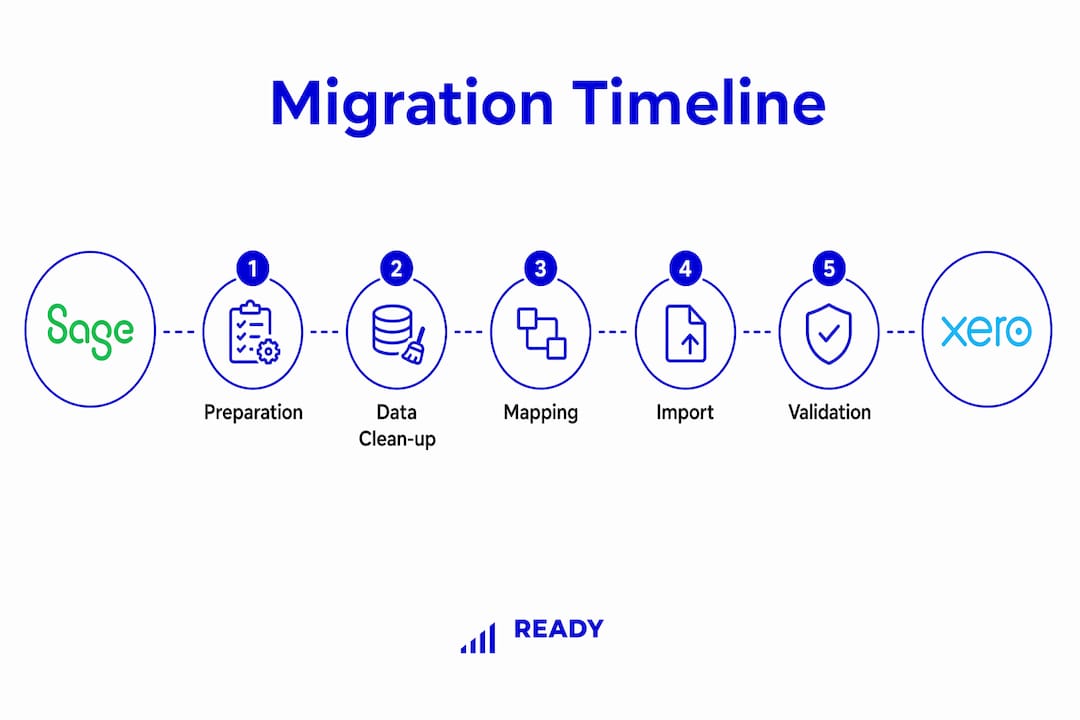
Data preparation is where most migrations succeed or fail. The principle is simple: garbage in equals garbage out. Unreconciled bank accounts and messy contact lists in Sage will transfer directly into Xero and multiply your problems.
Work through these steps before you export a single file:
- Complete all bank reconciliations in Sage. Every account must be fully reconciled to your most recent statement. Any unreconciled items will cause opening balance discrepancies in Xero.
- Back up your Sage data. Export a full backup and store it securely. Keep Sage open and accessible after migration for reference and compliance.
- Export key reports from Sage. Pull your trial balance, aged receivables, aged payables, and a full debtor and creditor list. These become your benchmark documents for post-migration validation.
- Review and clean your chart of accounts. Remove duplicate accounts, archive unused codes, and document the purpose of every active account. Mapping the chart of accounts is the most critical part of the entire migration.
- Prepare your contact lists. Format customer and supplier records to match Xero’s import template. Check that VAT numbers, email addresses, and payment terms are accurate.
- Export payroll and SARS-related data separately. If you run payroll through Sage Payroll, this data needs its own migration plan. Payroll records affect your EMP201 submissions and must remain intact.
Pro Tip: Create a simple spreadsheet that maps every Sage account code to its Xero equivalent before you start importing. This one document will save you hours of troubleshooting later.
Step-by-step process to migrate your accounting data
The technical migration follows a strict import order. Importing data in the wrong sequence breaks relationships between records and forces you to start over. Professional migration services complete this process in 3–10 business days, depending on data volume and complexity.

Automated vs manual import
Movemybooks is the most widely used automated migration tool for Sage to Xero transfers. It handles bulk imports of contacts, invoices, and bills directly from your Sage data files. The alternative is manual CSV import through Xero’s import templates, which works well for smaller datasets but requires more hands-on formatting.
Automated tools like Movemybooks simplify the bulk import process but do not replace manual post-migration checks. Plan for both.
The correct import order
Follow this sequence exactly:
- Chart of accounts — Set up your account structure first. Everything else maps to this.
- Tax rates — Configure VAT rates to match your SARS registration (standard rated, zero rated, exempt).
- Contacts — Import customers and suppliers before any transactions that reference them.
- Tracking categories — Set up department or project tracking if you use it.
- Inventory items — Import products and services if applicable.
- Opening trial balance — Enter your closing Sage balances as opening balances in Xero, dated to your conversion date.
- Outstanding invoices and bills — Import only unpaid invoices and bills as at your conversion date.
- Bank account opening balances — Enter the closing bank balance from Sage as the opening balance in Xero.
- Connect bank feeds — Link your business bank accounts to Xero for live transaction feeds.
Migration timeline summary
| Stage | Task | Typical duration |
|---|---|---|
| Preparation | Data clean-up, backups, account mapping | 4–6 weeks |
| Technical migration | Import data using Movemybooks or CSV | 3–10 business days |
| Validation | Trial balance checks, bank reconciliation | 1–2 weeks |
| Go-live | Full switch to Xero for live transactions | Day 1 of new period |
Pro Tip: Connect your Xero bank feeds on the same day you enter your opening balances. This prevents any gap in transaction history from your conversion date forward.
How do you validate your Xero setup after migration?
Validation is not optional. Post-migration reconciliation and trial balance checking takes several days and is the only way to confirm your data transferred correctly.
Run these checks immediately after completing your imports:
- Compare trial balances. Pull the trial balance from both Sage and Xero for the same date. Every account balance must match. Any variance points to a mapping error or missed transaction.
- Reconcile all bank accounts. Match your Xero bank balance to your actual bank statement. Discrepancies here usually trace back to unreconciled items in Sage that were not cleaned up before migration.
- Set a lock date in Xero. Setting a lock date prevents anyone from editing transactions before your conversion date. This protects the integrity of your opening balances and keeps your SARS submissions clean.
- Test your invoicing workflow. Create a test invoice, approve it, and record a payment. Confirm the bank feed picks it up correctly.
- Check payroll integrations. If you use a payroll add-on connected to Xero, verify that employee records and pay runs process correctly before your next payroll date.
The recommended best practice is one week of pre-migration preparation and one week of post-migration testing before you fully commit to Xero. This two-week window catches the majority of errors before they affect your live accounting.
Common issues to watch for:
- Invoices appearing as duplicates due to incorrect conversion date settings
- Missing transactions from the final days before migration
- VAT codes mapped incorrectly, causing errors in your VAT201 return
- Supplier balances not matching aged payables report
Key takeaways
Switching from Sage to Xero succeeds when you plan the timing carefully, clean your data thoroughly, follow the correct import order, and validate every balance before going live.
| Point | Details |
|---|---|
| Time your migration correctly | Start at the beginning of a financial year or VAT quarter to keep reporting clean. |
| Clean Sage data before exporting | Complete all bank reconciliations and remove duplicate accounts before any export. |
| Follow the import sequence | Import chart of accounts first, then contacts, then opening balances, then transactions. |
| Set a lock date immediately | Lock pre-conversion transactions in Xero to protect opening balances from accidental edits. |
| Allow two weeks for validation | Run trial balance comparisons and test all workflows before relying on Xero for live operations. |
What I have learned from guiding SMEs through this switch
Most business owners treat a software migration as a tech project. It is not. It is a financial project with real consequences for your VAT submissions, SARS compliance, and cash flow visibility. The businesses I have seen struggle with this transition almost always made the same mistake: they rushed the preparation phase and underestimated how much their chart of accounts structure would affect everything downstream.
The chart of accounts is your financial DNA. If you map it carelessly, every report Xero produces will be slightly wrong. Not obviously wrong, but wrong enough to mislead you when you are making decisions about pricing, hiring, or tax planning. I have seen businesses spend weeks untangling reporting errors that traced back to a single misclassified account code during migration.
My strongest advice is to treat the accounting software comparison and the migration itself as two separate decisions. Decide first that Xero is the right platform for your business. Then plan the migration as its own project with a dedicated timeline, a named person responsible, and a clear go-live date. Do not try to do both at once.
The businesses that transition smoothly are the ones that pick a clean start date, spend four to six weeks preparing, and then give themselves two full weeks after go-live to test and adjust before they trust the numbers completely. Patience in those first two weeks pays dividends for years.
— Johan
How Readyaccounting supports your move to Xero
Readyaccounting works with South African SMEs and startups that want to move beyond manual bookkeeping and build a finance function that actually supports growth. If you are planning to migrate from Sage to Xero, the accounting automation guide covers how to set up Xero correctly from day one, including bank feed automation, VAT configuration, and real-time reporting. For businesses that want hands-on support, Readyaccounting acts as your Fractional CFO through the migration and beyond, making sure your data is clean, your SARS submissions are accurate, and your cash flow visibility improves from the moment you go live.
FAQ
How long does a Sage to Xero migration take?
The technical migration takes 3–10 business days depending on data volume. Add 6–8 weeks for preparation and two weeks for post-migration validation.
What is the best date to switch from Sage to Xero?
The first day of a new financial year or VAT quarter is the best migration date. This creates a clean cut-off and simplifies SARS reporting.
Do I need to keep Sage after migrating to Xero?
Yes. You must retain your Sage records for compliance purposes. South African businesses should keep accounting records for a minimum of five years as required by SARS.
What is Movemybooks and do I need it?
Movemybooks is an automated migration tool that imports contacts, invoices, and bills from Sage into Xero in bulk. It speeds up the process but still requires manual validation after import.
What happens if my trial balances do not match after migration?
A mismatch means a mapping error or missed transaction during import. Compare each account line by line between Sage and Xero, check your conversion date settings, and review your chart of accounts mapping to find the source of the variance.